Shafran
Aug 6, 2025
Easy Method for Light & Dark Mode in Framer

In 2025, offering both Light and Dark mode isn’t just a design trend—it’s a user expectation. Visitors want websites that adapt to their preferences, look great in any environment, and remember their choices across the entire site. But implementing a seamless, persistent theme switcher in Framer can feel tricky—until now.
Why Light & Dark Mode Matters
Light and Dark themes aren’t just about style. For many, Dark mode means less eye strain, better battery life on mobile, and a more comfortable browsing experience at night. As more devices and operating systems support auto theme switching, your website should too. But if your Framer project forces users to manually reset their preference on every page—or worse, lacks dark mode altogether—you risk a clunky user experience.
Meet the ThemeSwitcher: Framer’s Easiest Solution
Enter the ThemeSwitcher: a plug-and-play component that brings instant, cross-page Light & Dark mode to any Framer project.
What makes it unique?
No coding required
Works across all pages and browsers
Remembers your user’s choice
Lets you use ANY custom toggle, icon, or frame design
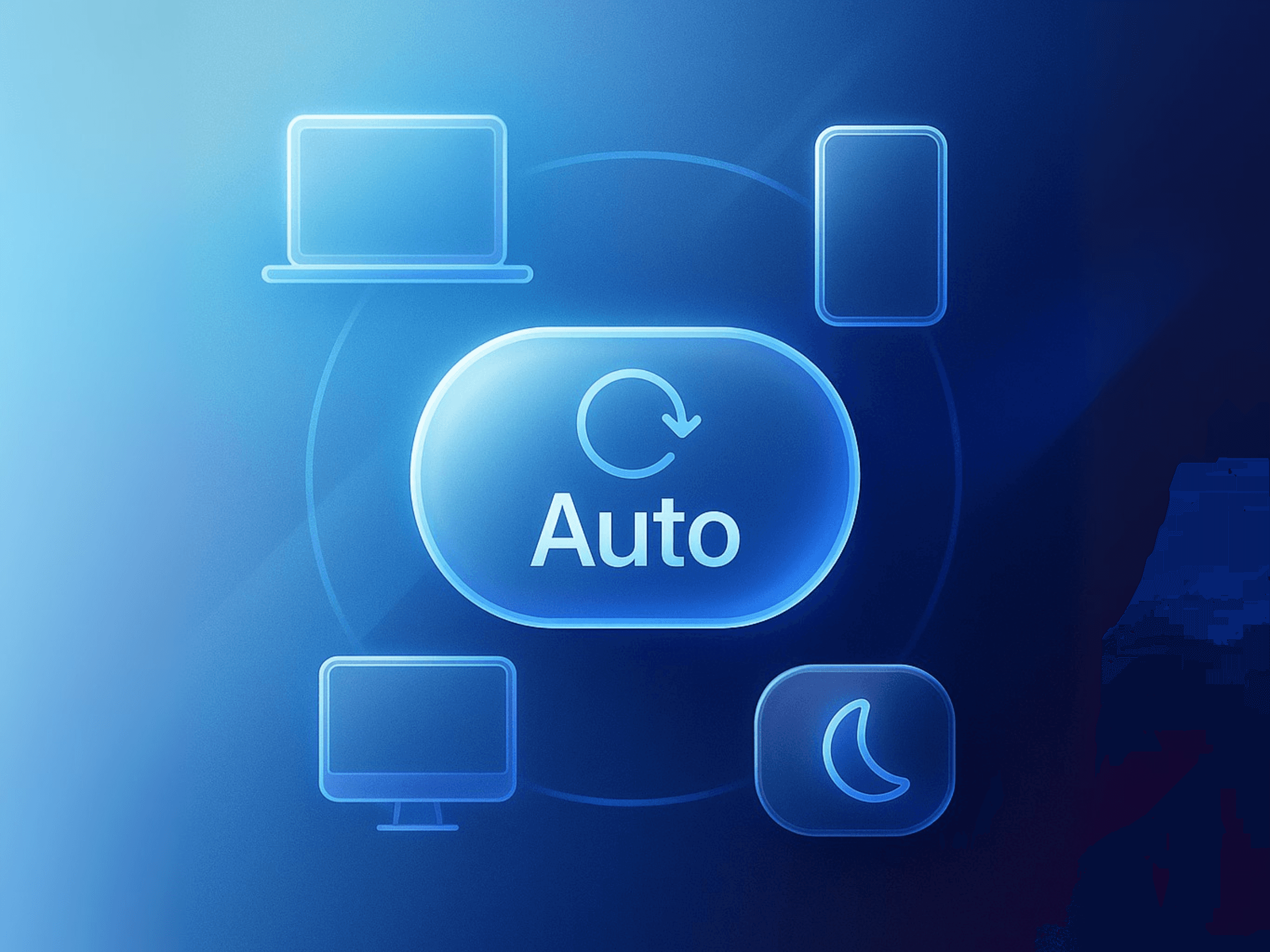
Follows system/OS preferences automatically
How to Add the ThemeSwitcher to Your Framer Project
Getting started is simple:
Copy the ThemeSwitcher code
(Available here or hire the creator)Paste it into your project
Drop it into your code components—no configuration needed.Connect your frames
Attach any design you want for Light and Dark mode toggles. The component lets you use your own icons, animations, or creative frames.Try it out!
Preview your site, click the switch, and watch as the mode updates—instantly and everywhere.
How It Works Behind the Scenes
Persistent by design:
ThemeSwitcher saves the user’s preference (Light, Dark, or Auto) in localStorage. When the user returns or navigates to another page, the same theme is applied—no more resets.System detection:
If set to Auto, it follows the user’s OS or browser theme, and updates live if the system changes.Plug-and-play flexibility:
You can plug in any toggle style—an icon, button, animation, or custom UI—giving you total design freedom.
Pro Tips for Designers
Make your theme toggle part of your brand! Use custom icons, playful animations, or even a micro-interaction to delight users.
Place the ThemeSwitcher in your header or navigation for maximum visibility.
Test on multiple devices to see system detection in action.
Ready to Upgrade Your Framer Site?
Don’t let outdated theme switching hold your project back. With ThemeSwitcher, you’ll deliver a seamless, modern experience that meets your users right where they are.
Copy. Paste. Connect your frames. That’s it!
Want to try ThemeSwitcher or need help customizing it?
Connect with @shafranofficial or hire on Contra.
Join the newsletter
Be the first to read our articles.
Follow Social Media
Follow us and don’t miss any chance!